
Photography workflows
LightCraft: RAW Photo Editing, Camera Support, and AI References
LightCraft is a local photo library and RAW developer from the ArtCraft team. Test the exact camera and compression mode, then keep photographic development separate from generative changes.
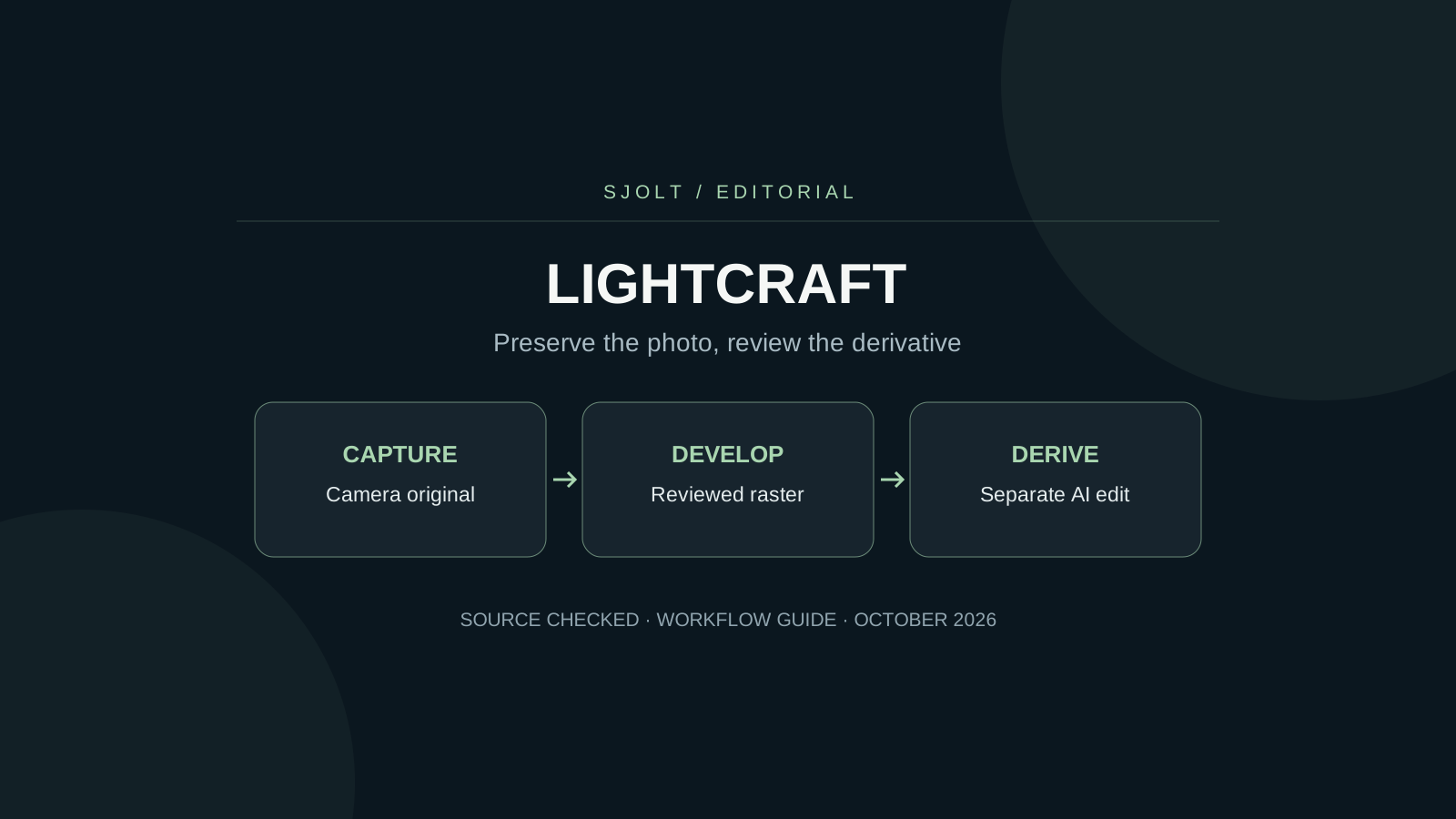
The LightCraft project covered here is storytold/lightcraft, a local photo library and RAW developer from the ArtCraft team. Its official product page identifies it as a photography application. That identity matters when a broad search result describes a similarly named AI or video tool.
For a photographer, the first question is whether the app develops the actual sensor data from your camera file or displays an embedded preview. The second is whether its rendering and export fit your intended use. Test both before moving a working library.
Start from the photography project
The repository describes non-destructive adjustments, photo organization, and local operation. Its library tools and RAW pipeline are different from a hosted model that generates a new image. A successful photograph edit should be judged by the source detail, color, and output requirements you intend to preserve.
Choose a small test set from your own camera: one daylight frame, one high-contrast scene, one low-light shot, and one image containing a familiar neutral or product color. Include the actual compression mode used on the job. Two files with the same extension can exercise different decoder paths.
An opened RAW file is not proof of sensor decoding
LightCraft’s roadmap distinguishes decoded RAW variants from embedded JPEG fallbacks. It documents sensor decoding for some CR3 variants while unverified variants can fall back to a preview. It also lists other format-specific gaps. Read the current coverage notes instead of treating the camera brand or file extension as a blanket support claim.
| What to establish | Why it changes the result | Useful evidence |
|---|---|---|
| Camera model and compression setting | Different variants may take different paths. | Original file and capture settings. |
| Sensor data or embedded preview | A preview has already been rendered in camera. | Decoder status, warnings, and documented support. |
| Color interpretation | Decoding and camera calibration are separate. | A known neutral and a trusted reference rendering. |
| Export dimensions and depth | The delivery file may lose information. | Properties of the reopened export. |
Do not infer RAW recovery from a bright-looking thumbnail. Move exposure carefully and inspect highlights, edges, and noise at full size. Compare the output with a trusted rendering of the same original. This is an acceptance test you perform; it is not a benchmark result established by this article.
Keep a written note when the app is using a preview. That image may still be useful for culling or a rough composition, but it cannot demonstrate that all sensor information is available for further development.
Check camera color separately from file support
The roadmap explains that some camera-color estimates are derived from the file’s embedded JPEG. It distinguishes those estimates from measured calibration and notes fallback behavior. This is a reason to examine the colors you actually need, especially a product’s finish or a skin tone under difficult light.
Start with a modest white-balance and exposure adjustment. Keep the same display conditions for comparisons and avoid judging a thumbnail next to a full-resolution image. If a material shifts color, isolate whether the issue appears on import, after an adjustment, or only after export. That sequence narrows the cause more effectively than changing several controls at once.
Keep a conservative developed master. You can make a more stylized version later without losing the baseline used to judge product accuracy. For a client review, label these versions clearly so a dramatic grade is not mistaken for the faithful reference.
Verify optional AI features in the installed build
LightCraft’s source documents are evolving. The README describes classical subject and sky selection and lists AI gaps, while the newer roadmap discusses optional model-based capabilities such as Bayer RAW denoising with separately installed weights. A roadmap entry is not evidence that every installer includes a working model.
Record the application version and which optional assets were installed before comparing results. Test one feature on a duplicate image, check its supported input type, and reopen the saved result. If a required asset is unavailable, continue with the documented manual controls rather than promising an automatic equivalent.
The practical outcome is a predictable photo workflow. You do not need to turn on every experimental feature to select a frame, set a crop, or prepare a reference. Evaluate optional processing only when it solves an observed problem in the source.
Prepare a separate raster reference for SJolt
A generative edit is useful when you want a new backdrop or a concept derived from the photograph. Develop and export a clear reference first. SJolt’s Nano Banana 2.1 image-edit route accepts public PNG, JPEG, or WebP image URLs; it does not accept a LightCraft library or a camera RAW file as that reference input.
Image 1 shows the real product.
Keep its outline, material, proportions, and label unchanged.
Replace only the setting with a pale studio background.
Keep the full object visible in a 4:5 composition.
Do not add text or invent product details.
The prompt describes desired preservation; it cannot guarantee unchanged pixels. Inspect the returned image against the developed reference, especially labels, fine edges, and reflective surfaces. Store it as a generated derivative alongside the original photo, with the prompt and task ID. Do not overwrite the photographic master with a result that changes the scene.
For ordinary exposure or crop correction, stay in the photo editor. For a creative scene variation, a separate image-generation step can be appropriate. This file handoff is not a built-in LightCraft integration, and it does not turn generated imagery into evidence of a real scene.
Adopt the workflow only after a reopen test
Save the test library, reopen it, and verify that originals, adjustments, and exports are where you expect them. Repeat the export check on the exact file type required by the next editor. Once those checks pass, expand to a representative folder before considering a larger migration.
No LightCraft binary, camera decoder, or optional model was executed for this guide. The sources establish documented scope and limitations; your own files establish whether the current build meets your photographic requirements.
Sources & further reading
Take the next idea into production.
Explore the models, test a workflow in the playground, and use the same request in your application.