
Video workflows
Grok.com/Imagine: Web Access, API Options and SJolt Video
The Imagine website, xAI API and SJolt video routes expose different controls. Choose the surface first, then keep image inputs, framing and task tracking consistent.
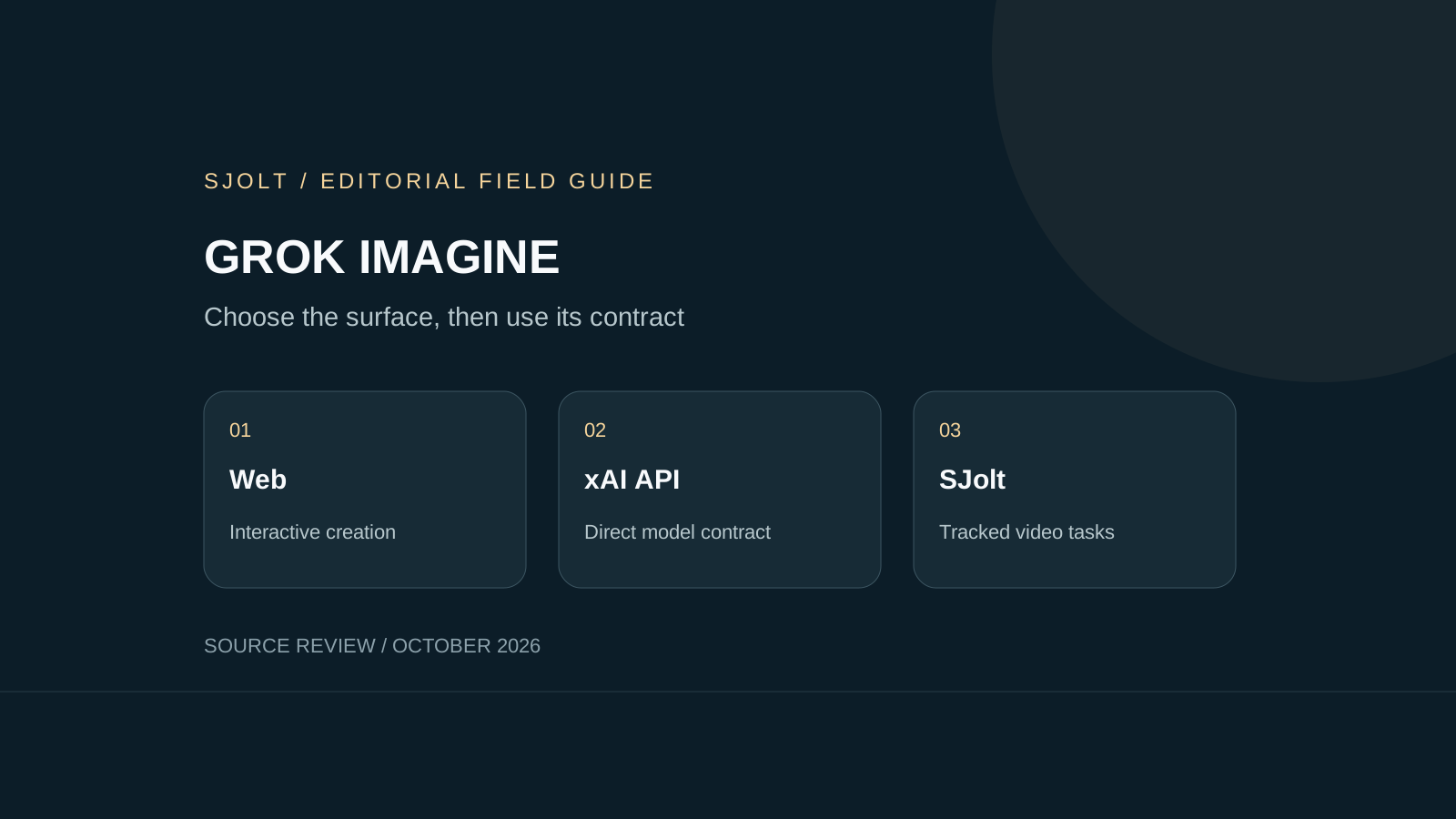
Grok.com/imagine is the official Grok Imagine web destination. If you want to create interactively, open that page. If you are building an application, choose an API and read the contract for that specific service before copying a request.
SJolt currently offers Grok Imagine Video 1.5 through three video routes. That does not make every image mode, reference control or resolution from the Imagine website and xAI API available through SJolt. This guide separates the options and gives a request that matches SJolt’s current implementation.
Choose the surface that matches the job
xAI’s Image 2.0 announcement identifies Quality Mode on the website and apps, and grok-imagine-image-2.0 in its API. Its current video overview documents Video 1.5, Video 1.5 Lite and the older model used for editing and extension. These are distinct capabilities; the word Imagine alone does not identify the request contract.
| Surface | Useful starting point | Contract to use |
|---|---|---|
| Grok web experience | Interactive exploration and revisions. | The controls and access shown in your account. |
| xAI direct API | Features listed in the selected xAI model documentation. | xAI model names, credentials and response schema. |
| SJolt Video 1.5 | Programmatic video jobs through an SJolt account. | SJolt mode-specific routes and task responses. |
A browser URL is not an API endpoint. Keep credentials and billing records with the service they belong to. When a tutorial uses a different provider, translate the request deliberately instead of changing only the hostname. The input envelope and the way you retrieve the result may also differ.
This source review did not establish a universal free allowance or account-specific web limit. Check the current interface for interactive access and the selected service’s pricing for API work. The examples here were reviewed offline; no image or video was generated.
Read SJolt’s current Video 1.5 limits
SJolt exposes 720p output and whole-number durations from 1 to 15 seconds, defaulting to 8 seconds. Prompts can contain up to 4,096 characters. The three modes share those limits, while their media inputs and framing controls differ.
| Mode | Image input | Framing |
|---|---|---|
| text-to-video | No image fields. | aspect_ratio: auto, 1:1, 16:9, 9:16, 3:2 or 2:3. |
| image-to-video | One public image_url. | Derived from the source image; omit aspect_ratio. |
| reference-to-video | 2–7 public image_urls. | Uses the selected supported aspect_ratio. |
The documented source formats are JPG, JPEG, PNG and WebP, up to 20 MB per image. Use image-to-video when one image defines the opening composition. Use reference-to-video when several images supply appearance or style. A single item in image_urls is not a substitute for image_url.
xAI’s direct Video 1.5 documentation describes a broader feature set, including native 1080p, up to 14 image references, voice references and pinned frames. Those fields are not exposed in SJolt’s current adapter. Likewise, do not send Video 1.5 Lite or Imagine Image 2.0 requests to these SJolt video routes.
Submit one small text-to-video job
Start with a six-second scene whose success is easy to judge: one ceramic cup, one camera move and a clear audio instruction. This original example uses only supported inputs. Running it with your key creates a billable task; it was not executed for this article.
curl --fail-with-body \
  "https://sjolt.ai/sjolt-ai/v1/xai/grok-imagine-video-1.5/text-to-video" \
  -H "Authorization: Bearer $SJOLT_API_KEY" \
  -H "Content-Type: application/json" \
  --data '{
    "input": {
      "prompt": "A single blue ceramic cup on a pale table. Slow camera push toward the cup. Soft morning light, subtle room ambience, no dialogue, no music, no lettering.",
      "duration": 6,
      "resolution": "720p",
      "aspect_ratio": "16:9"
    }
  }'
Save data.task_id from the accepted response. Query the task below with that identifier. Status 0 means running, 1 means succeeded and 2 means failed; successful file URLs are in data.output_urls. A successful submission response does not yet mean that a video can be downloaded.
curl --fail-with-body \
  "https://sjolt.ai/sjolt-ai/v1/tasks/YOUR_TASK_ID" \
-H "Authorization: Bearer $SJOLT_API_KEY"Use a bounded polling loop in the application and retain the task ID when a status request fails. A transient read failure should not automatically trigger another generation. If generation succeeds but downloading fails, retry retrieval of the existing result before purchasing another attempt.
At the current standard SJolt rate of $0.0225 per output second, the six-second example is $0.135. A hypothetical set of twenty such attempts totals $2.70 before any account-specific terms. These are arithmetic estimates using SJolt pricing, not xAI direct prices or charges from an executed batch.
Move to an image only when the brief needs one
For a product that must keep a particular silhouette, prepare a clear source image and choose image-to-video. Keep the original crop aligned with the desired output framing. Describe movement and what should remain stable; adding a contradictory camera or framing instruction makes the acceptance check less clear.
For multiple references, assign a role to each image in the prompt: product identity, setting or color treatment. Start with the smallest useful set and keep the order fixed across revisions. References should not be treated as editable layers, and their presence does not guarantee preservation of a logo or fine lettering.
If the source still needs to be created, Nano Banana 2.1 is a separate supported SJolt image workflow. Review the still before submitting it to video. Keep the image task ID and approved source file with the video job so that a later revision can reuse the same starting point.
Judge the exported clip against the brief
Watch the complete clip at normal speed, then inspect the opening and closing frames. Check object count, product shape, camera movement and whether the sound follows the instruction. A good opening frame can conceal a mid-clip deformation or an unwanted sound later in the shot.
Record a short reason for rejection and change one factor on the next attempt. If the composition is good but a precise headline is wrong, add editable typography during finishing instead of regenerating an entire shot solely for a letter. Keep the approved clip, its settings and the final edit together.
Treat the delivered file as the handoff between generation and editing. The API task record explains how it was requested; a review decision establishes whether it fits the deliverable. Neither a provider demo nor this contract review substitutes for checking your own exported clip.
Sources & further reading
Take the next idea into production.
Explore the models, test a workflow in the playground, and use the same request in your application.