
Audio and video
ElevenLabs v4: Plan Voiceovers for a SJolt Video Workflow
Voiceover and video need a shared timing plan. Use ElevenLabs for the narration you require, SJolt for supported visual generation, and an editor to assemble the final piece.
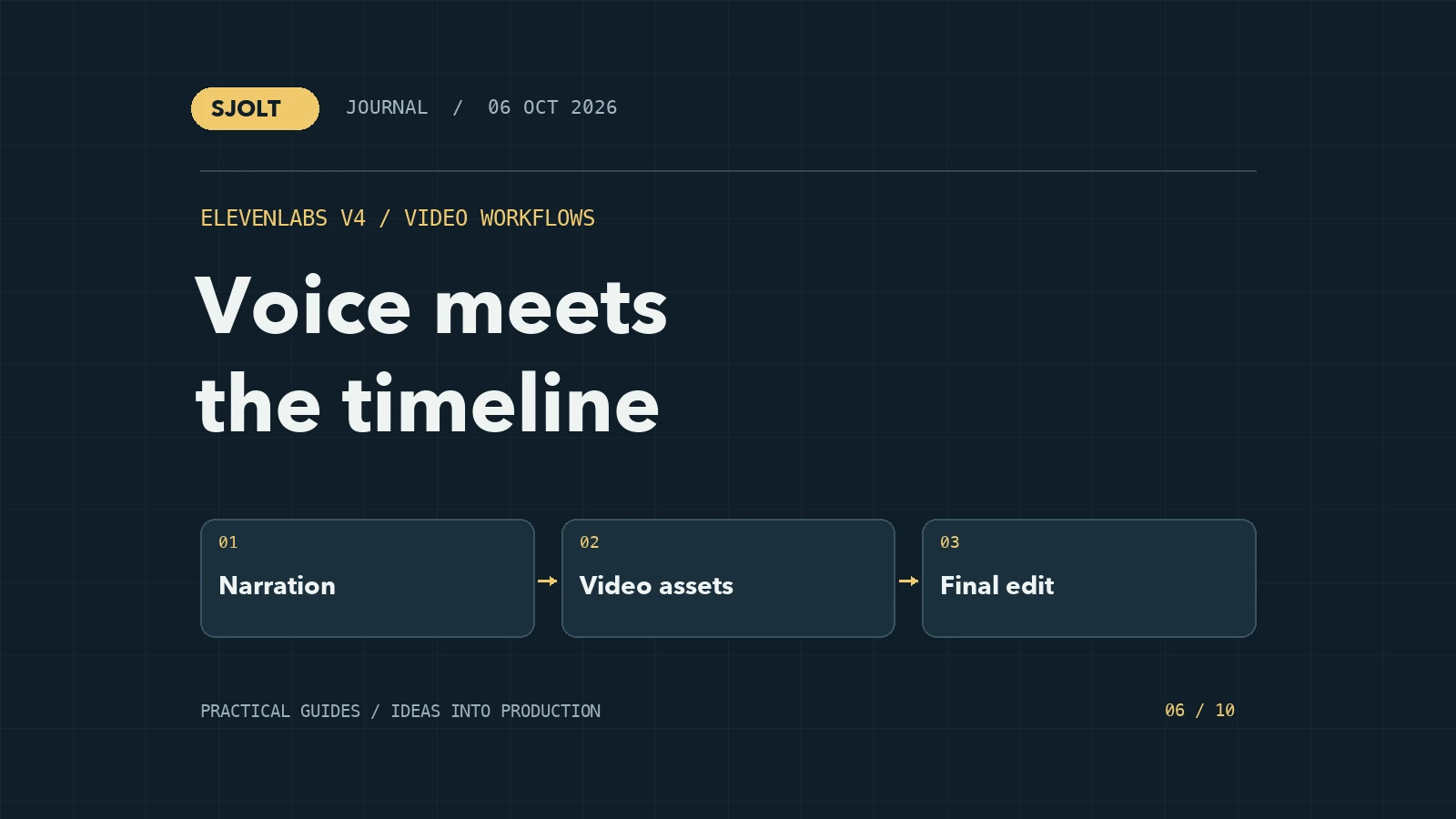
ElevenLabs’ official v4 page presents two speech models: Eleven v4 for produced content and Eleven v4 Turbo for latency-sensitive voice experiences. Both are speech tools. The choice begins with whether you are preparing a finished narration or responding to someone in real time.
SJolt does not currently expose an Eleven v4 text-to-speech endpoint. You can produce narration through ElevenLabs and create visual assets with SJolt, then combine the files in your editing application. That is a multi-tool production workflow, not a built-in ElevenLabs integration.
Choose the speech workflow before the visuals
ElevenLabs describes v4 as supporting expressive direction, multiple speakers, and audio tags. It positions Turbo for responsive experiences such as voice agents. Those product descriptions suggest different tests: sustained delivery for a narrated film, versus response timing and interruption behavior for an interactive application.
For an edited product explainer, the priority is usually a clear script, consistent delivery, and enough room for visual events. For an interactive agent, time to first audio is only one part of the experience; the full conversation also depends on input capture, reasoning, and playback. Do not substitute a vendor’s model latency figure for a measured end-to-end response time.
Write the script around one idea per beat
A useful narration draft says what the viewer needs to understand at each moment. Avoid writing a dense paragraph and trying to fit it over a fixed sequence of clips afterward. Mark where the viewer must read a label, compare two objects, or notice a change; each of those actions needs visual time.
Beat 1 — Problem
A reference gives you the look.

Beat 2 — Workflow
A clear brief tells the model what should move.

Beat 3 — Review
Check the result, refine one detail, and keep the version that works.
This script is an editorial example, not a generated audio result. Read it aloud before producing speech. Replace abstract terms with the exact objects shown on screen, and remove any sentence that asks the audience to absorb two unrelated ideas at once.
If you use delivery tags, add them only where they communicate a useful direction. A restrained change in pace can help a reveal; excessive direction can make a short explanation harder to follow. Review the actual audio rather than assuming a tag guarantees a particular performance.
Build a timing sheet from the actual narration
| Section | Visual plan | Timing decision |
|---|---|---|
| Opening | Show the original reference and the intended outcome | Let the viewer understand the comparison before cutting |
| Process | Show one clear change or action | Align the important visual event with its spoken phrase |
| Closing | Hold the selected result and a short call to action | Leave room to read; do not end on the last syllable |
Generate a narration draft, listen to it, and mark the actual start and end of each phrase. Use those timings to plan shots. If the voice track is longer than expected, revise the script or use additional visual coverage rather than forcing every word into a short clip.
Keep narration as a separate track during iteration. You can then change a visual without recreating the voice, or correct a pronunciation without regenerating the entire scene. This also makes it easier to create translated versions with different speaking durations.
Generate the visual assets through SJolt
For short illustrative footage, SJolt’s Veo 3.1 routes produce eight-second clips and support prompt-directed native audio. If you already have an approved narration, decide which generated ambience or effects you want to retain. Avoid layering two competing voices unintentionally.
Use the image-to-video route when the shot should start from a supplied frame, or the text-to-video route when you are developing a new shot from a description. For a product film, an approved still can provide a more concrete starting point than a purely verbal product description.
Describe the visual action, camera movement, and sound requirements separately in the shot brief. Keep one principal action per short shot. If the narration explains three steps, three simple shots may be easier to review than one generation asked to show the entire process.
Supplying a narration file to your editor does not make a video model synchronize lips to that recording. If visible speech must match exactly, choose a separately verified lip-sync workflow. The pipeline here is intended for narration over visual coverage.
Assemble and review the final export
- Import the narration and generated video files into your editor on separate tracks.
- Trim the visuals around the spoken beats, preserving enough time to understand each shot.
- Set the relative level of narration, music, and ambience while listening to the combined mix.
- Check captions against the actual words and their timing, not just the original script.
- Watch the exported file on the target device and listen for clipped words or abrupt transitions.
Save the script version, voice settings, audio file, visual prompts, and SJolt task IDs together. For revisions, specify whether the issue belongs to the narration, a generated shot, or the edit. That keeps an efficient production workflow from becoming a cycle of recreating assets that were already correct.
The useful comparison is the finished piece: intelligible speech, coherent visuals, and timing that serves the message. Evaluate Eleven v4 on the audio you need and SJolt models on the visual task they actually support.
Sources & further reading
Take the next idea into production.
Explore the models, test a workflow in the playground, and use the same request in your application.