
Creative workflows
GPT-6 Intelligent UI: From an Interactive Answer to a Creative Brief
Intelligent UI can turn a conversation into an interactive explanation or planning tool. Here is how to use that interaction to make a clearer creative decision and hand off an approved brief.
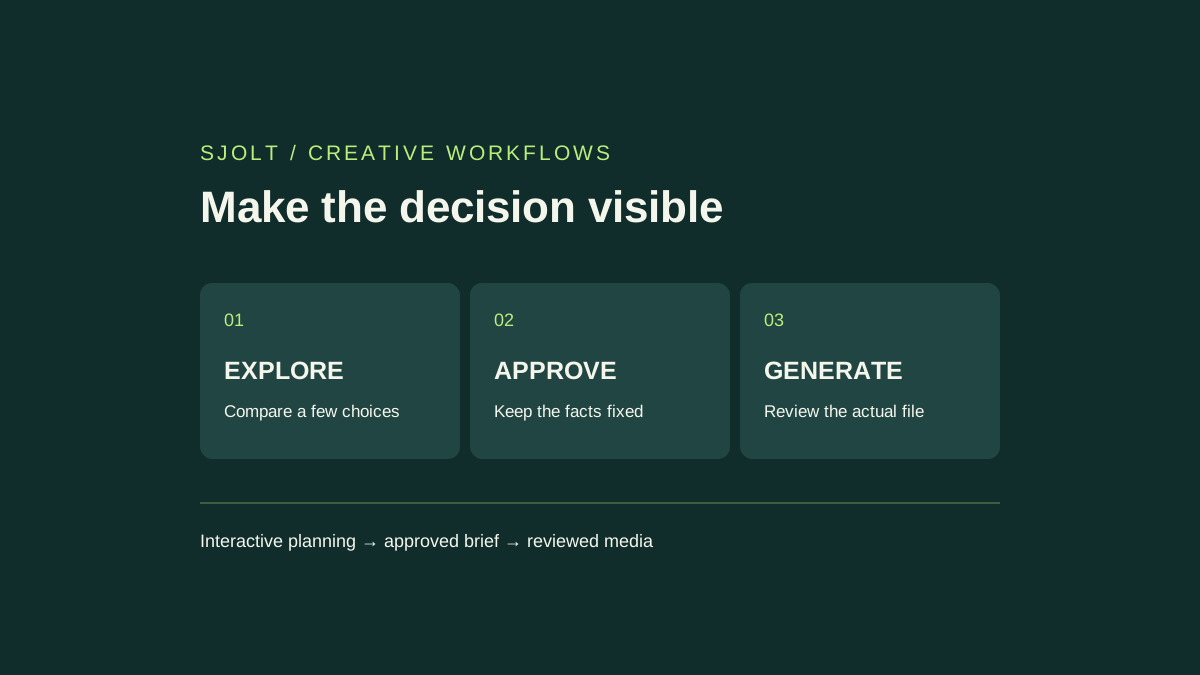
GPT-6 Intelligent UI is a ChatGPT capability announced by OpenAI on October 7, 2026. It can combine an answer with controls, charts, forms, and other interactive elements inside a conversation. Start in ChatGPT when your goal is to explore a decision visually.
For creative work, a useful first task is narrowing a campaign brief before generating assets. This guide proposes a small planning exercise and a concrete handoff to SJolt. The exercise is an editorial example, not a report of a tested ChatGPT session.
Check the product surface first
OpenAI announced a rollout beginning October 7 for Plus, Pro, Business, and Enterprise, expanding to Free and Go the following day. Enterprise access depends on administrator settings. The announcement concerns ChatGPT’s Chat tab; it does not change the models in Work or Codex. Check your own account rather than treating that schedule as proof of access.
The interface is chosen around the question. Some answers can benefit from a control or diagram; a short text answer may still be appropriate. Ask for the decision you want to explore, then specify the useful inputs and outputs. Merely adding “interactive” to a vague request leaves the important design choices unresolved.
Turn a vague campaign idea into a small decision tool
Suppose you are preparing images for a reusable bottle campaign. You know the product, the intended audience, and the required placements, but you have not chosen a setting. An interactive comparison can help you inspect tradeoffs before spending time on a finished image. Provide the approved product facts separately from ideas that may change.
Help me choose a visual direction for a reusable bottle campaign.

Confirmed facts: matte green bottle, black cap, no visible branding.
Audience: commuters. Required placements: 4:5 social image and 16:9 banner.
Compare three settings: desk, train platform, and park bench.

Create a compact interactive comparison if the interface supports it.
Let me select the setting and placement, then show:
- a composition plan;
- the product details that must stay fixed;
- one practical risk for the selected crop;
- a copyable final image brief.

Mark creative suggestions as suggestions. Do not invent product claims.
Do not generate or order any media during this planning step.
This prompt defines a small, inspectable state space: three settings and two placements. That makes it easier to notice whether changing a control has changed the relevant advice. A dozen loosely related sliders would add work without necessarily clarifying the decision.
Use your actual constraints in place of the sample facts. If the bottle capacity, available colors, or approved headline is unknown, leave it unknown. A planning interface should help you see missing information before it becomes part of an attractive but inaccurate creative direction.
Check what changes when you interact
| Change | Expected effect | Review question |
|---|---|---|
| Desk to train platform | The setting and practical composition advice change. | Did the product facts remain fixed? |
| 4:5 to 16:9 | The framing and space for copy change. | Is the bottle still the main subject? |
| Choose a direction | A final brief reflects the current selection. | Can another person understand it without the interface? |
After selecting a direction, read the final brief from beginning to end. Look for stale values from a previous selection. Check that the setting, crop, and reserved space agree with one another. A button responding to a click is only one part of correctness; the underlying recommendation must also remain coherent.
Keep an explicit acceptance rule. For this example, the brief passes when it identifies one setting, one placement, the fixed bottle appearance, and a place for any later headline. It fails if it invents a product benefit or combines incompatible framing instructions. These are proposed review criteria, not claims about model accuracy.
Move the approved brief into a media workflow
Once the direction is settled, copy the final brief into a durable project note with the reference filenames and intended output shape. SJolt’s Nano Banana 2.1 supports text-to-image and reference-guided image editing. Use the image-edit mode when an approved product image should guide appearance, and choose the output ratio explicitly.
Keep the decision record and generated file together. Store which brief produced the candidate, then compare that candidate against the fixed facts. If the bottle cap changes or the object becomes the wrong color, revise the image instruction or reference selection before approving the asset. Finish exact copy and layout in the receiving design tool.
For an application, save the media task ID after submission and recover its status when the user returns. A planning control that changes a setting should not silently submit another paid task. Make the generation action explicit and show the selected settings beside it.
Distinguish interface generation from operating an interface
OpenAI’s computer-use API guide describes a separate workflow: an application supplies an environment and executes model-directed UI operations. An interactive answer in ChatGPT does not by itself provide that runtime or permission to operate another application.
SJolt lists GPT-6 Astra, GPT-6 Sol, and GPT-6.1 Sol with language-model API routes. Those routes can support a briefing or coding step in your own application; they do not document an Intelligent UI product endpoint. Your application still needs to render its controls, manage state, and perform any authorized actions.
Choose the next step by the deliverable. Use a conversational interface to explore the decision, a language-model API to build a controlled application workflow, and a media endpoint to generate the actual image. Review the handoff between each step. No paid requests or independent interface performance tests were run for this guide.
Sources & further reading
Take the next idea into production.
Explore the models, test a workflow in the playground, and use the same request in your application.