
Creative workflows
Amazon Alexa Tablets: Which Screen Fits a Creative Review?
Amazon’s new Alexa Tablets combine Android, Google Play, and Alexa+. For creative work, choose around the files and review tasks you need—not an untested performance promise.
Amazon has announced three Alexa Tablets: the 12 Pro, 11, and 8. They run Android with Google Play access and built-in Alexa+. For someone reviewing campaign images, the useful question is which screen and interaction style make the actual review easier.
As of October 11, 2026, the announced shipping dates are still ahead: October 14 in the US, Mexico, and Canada, and October 19 in the UK, Germany, France, Italy, and Spain. This is a source-based planning guide, not a hands-on review or a claim that SJolt has certified these devices.
Start with the screen, then the work
| Model | Announced display | US starting price |
|---|---|---|
| Alexa Tablet 12 Pro | 12-inch, 3:2, 120Hz | $499.99; Nanomatte from $549.99 |
| Alexa Tablet 11 | 11-inch, 16:10, 90Hz | $329.99 |
| Alexa Tablet 8 | 8.7-inch | $229.99 |
Treat those as launch prices, not a complete project budget. Check the local configuration, taxes, storage, and accessories separately. A larger screen can give a reviewer more room for an image and comments, but it does not establish color accuracy, application compatibility, or faster cloud generation.
Choose a representative review before choosing hardware. A portrait social image, a wide banner, and a page with small captions stress different parts of the experience. If most decisions concern tiny label text, the ability to zoom and compare versions matters more than a home-screen demonstration.
Understand what screen-aware Alexa adds
Amazon describes On-Screen Intelligence as contextual help based on the displayed content. It is off by default, requires opt-in, and shows an indicator when active. The 12 Pro’s optional Nanomatte display targets glare reduction. These are manufacturer descriptions; neither establishes suitability for color-critical approval.
Keep assistance and approval as separate steps. An assistant might help summarize a visible brief, but a person should still compare the finished image with the approved product photograph. A plausible description does not establish that a logo, capacity label, or material is accurate.
For a client session, decide which version and reference should be on screen before discussing changes. Keep an approved reference beside the candidate where your chosen app allows it, or alternate between clearly named files. Avoid approving an image from memory after several similar revisions.
A tablet shape is different from an image placement
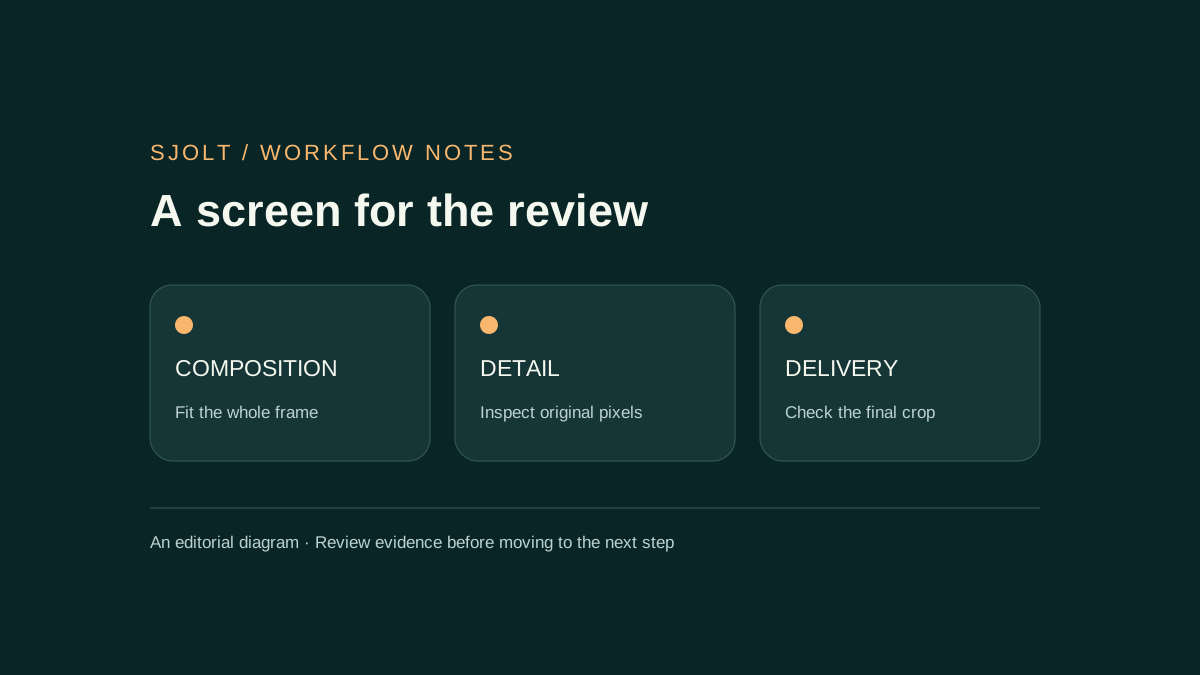
A wide campaign image can have unused space when shown on a taller display. That is usually preferable during approval to silently cropping off part of the composition. Use a fit view to inspect the whole image, then zoom to judge details. Make the final placement crop a separate review.
| Review target | Useful test | What a pass means |
|---|---|---|
| Whole composition | Fit the complete image on screen. | Nothing important disappears outside the view. |
| Small product details | Zoom to the original pixels. | Labels and edges can be inspected without guessing. |
| Social placement | Preview the intended portrait or square crop. | The subject and exact copy survive the placement. |
| Client comments | Switch between candidate, reference, and notes. | Every comment clearly identifies a version. |
Do not force an image to match the tablet’s panel ratio unless the tablet itself is the final installation. A 16:9 video, a 4:5 campaign image, and a square listing photo should retain the shape their audience will see. Distorting an image to fill a screen makes review less reliable.
Use SJolt for assets, then review the actual files
SJolt’s Nano Banana 2.1 supports text-to-image generation and reference-guided image editing. Select an explicit output ratio such as 4:5 or 16:9 and a resolution tier of 1K, 2K, or 4K. The tablet is a possible review device; generation runs through the separate hosted service.
Start by reviewing an existing approved asset. Download the original delivery file, open it in the app you intend to use, rotate the device, and check zoom, scrolling, and file sharing. This small test can reveal whether the review workflow works before you spend on new generations or build an integration.
- Keep the reference, generated candidate, and final cropped export as separately named files.
- Record comments against a filename or task ID, not “the latest one.”
- Check exact text, object geometry, and image boundaries at full size.
- After revisions, compare the new candidate with the original reference again.
For an API-backed review app, retain the accepted task ID and recover its status when a browser tab returns from the background. Do not start another paid generation just because the tab was suspended. Keep API credentials in the server application. No built-in Alexa-to-SJolt integration is documented here.
Decide after a representative review
If you mainly inspect full compositions and annotate many images, try the largest screen with your real files. If you mostly confirm a shortlist while traveling, test portability and one-handed use. If accurate color is the approval criterion, compare the device against your established review display under controlled conditions before relying on it.
For video work, add a short playback check containing motion, subtitles, and sound. Confirm that the delivered file opens in the receiving app and that captions remain legible. A tablet specification sheet cannot substitute for that end-to-end test.
No Alexa Tablet hardware, SJolt generation, or device-specific browser compatibility test was run for this guide. Use the linked announcement for product facts and the checks above to make your own purchasing and workflow decision.
Sources & further reading
Take the next idea into production.
Explore the models, test a workflow in the playground, and use the same request in your application.