
Image troubleshooting
ChatGPT Image Generation Error: What to Check Before Retrying
An image error is a starting point for diagnosis. Preserve your prompt, check service status, isolate the failing step, and avoid creating unnecessary duplicate requests.
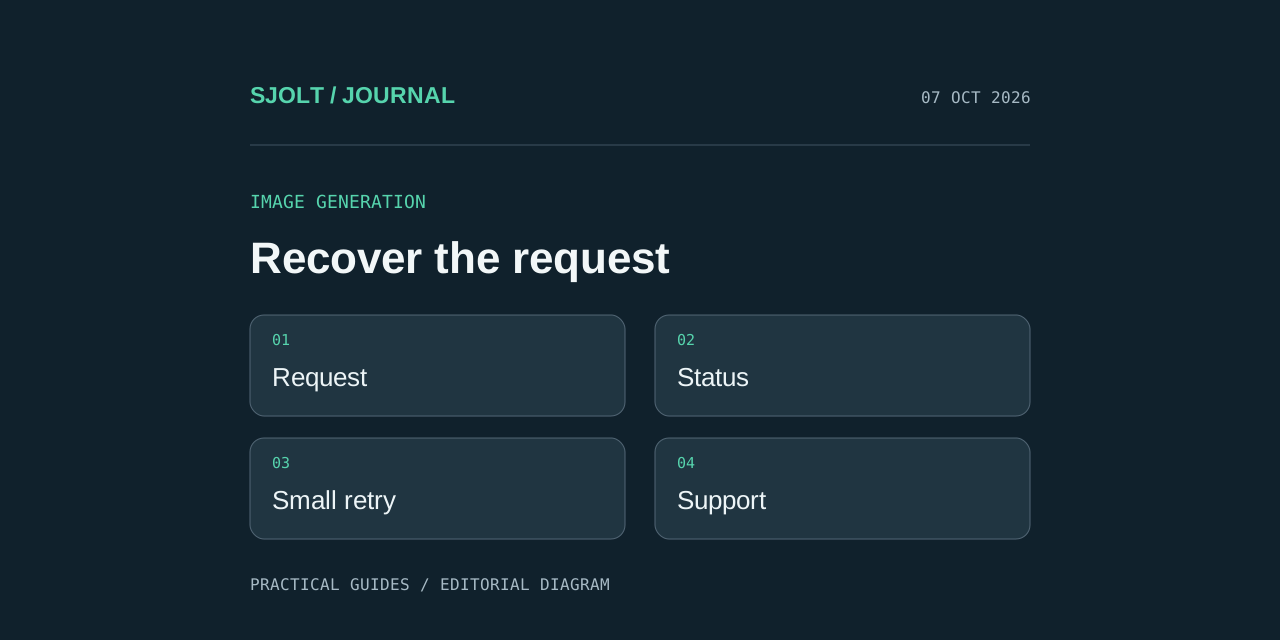
If ChatGPT says “I wasn’t able to generate the image due to an error on my side,” preserve the prompt and any reference image, then check the service status before retrying. The sentence alone does not identify a root cause, prove that your account is blocked, or tell you whether a new request will succeed.
OpenAI’s troubleshooting guide covers general ChatGPT failures, but it does not document this exact sentence as a distinct error code. Use the sequence below to isolate what failed. The later SJolt example is a separate API workflow for an image you still need to make; it does not repair a ChatGPT conversation.
Identify which stage failed
| What you observe | What to investigate |
|---|---|
| The request never starts | The selected creation tool, the visible account message, and connectivity |
| Generation starts, then an error appears | Service status and whether the same failure occurs with a simple request |
| A result exists but will not open or download | The result link and download step; avoid regenerating a successful image immediately |
| The message explicitly names a usage limit or content restriction | The stated limit or restriction, rather than a generic browser fix |
Write down the time and timezone, the exact message, and the last action you took. Keep your original reference file separately. This gives you a stable starting point if a fresh chat works differently. An error after an upload also leaves two possible failure points: receiving the file and generating the edit. Test those separately instead of changing every part of the request at once.
Use a short recovery sequence
OpenAI recommends checking status.openai.com, trying a fresh chat, refreshing the application, and testing a private browser session or another network when failures continue. Its guidance also covers extensions, VPNs, and cached site data. Change one condition at a time so you can tell which change affected the result.
- Save the original prompt and references, and check for a relevant incident. Do not assume that a green status page proves every individual request is healthy.
- If there is no clear incident or account-specific instruction, make one simple request in a new chat.
- If it works, reintroduce the reference image and the requested edit separately. If it fails too, test a fresh browser session.
- If the failure persists across environments, collect a concise reproduction for Support rather than repeatedly resubmitting the full job.
A useful minimal request is: Create a square studio photograph of a plain blue ceramic mug on a white table. It removes reference uploads and complicated composition from the test. This is a diagnostic prompt, not a promised workaround. A success narrows the problem; it does not establish why the earlier request failed.
Check the reference and the edit independently
OpenAI documents both image creation in conversation and editing an uploaded image. The expected path depends on which task you are doing. Confirm that the reference visibly finished uploading and that your instruction describes the intended change.
For an edit, start with one source and a single instruction such as changing the background while preserving the object. Keep the file unchanged during the first retry. If you simultaneously replace the image, simplify the prompt, switch browsers, and start a new conversation, a successful result tells you little about the original problem.
Separate technical recovery from creative revision. Once generation works, review the picture against the brief: subject, required text, composition, and preserved details. A successful response can still produce an unusable asset, and that calls for an editing decision rather than another connectivity test.
Create a useful support record
Time and timezone:
Chat or conversation ID:
Visible creation tool or model:
Exact error text:
Text-only generation or image edit:
Last successful step:
Result of one fresh-chat test:
Result in a separate browser session:
OpenAI’s guide asks for timestamps, conversation information, console errors, and a HAR capture when persistent failures require support. Use its linked collection instructions and remove credentials or private material before sharing diagnostic files. Keep the description factual: what you submitted, what appeared, and what changed between attempts.
Use SJolt when you need an independent image API workflow
SJolt lists GPT Image 2 with separate text-to-image and image-edit routes. For a new image, the current public request accepts a prompt, aspect_ratio, and resolution. The example below uses the supported 1:1 ratio and 1K resolution. It is checked against the SJolt contract and was not executed as a paid generation.
curl --request POST 'https://sjolt.ai/sjolt-ai/v1/openai/gpt-image-2/text-to-image' \
  --header "Authorization: Bearer $SJOLT_API_KEY" \
  --header 'Content-Type: application/json' \
  --data '{"input":{"prompt":"A plain blue ceramic mug on a white studio table, soft daylight, no lettering.","aspect_ratio":"1:1","resolution":"1K"}}'
Keep the key in your server environment. Save data.task_id after acceptance and query /sjolt-ai/v1/tasks/YOUR_TASK_ID with the same authorization. Status 0 means running, 1 means succeeded, and 2 means failed; successful output URLs are in data.output_urls. If you already have a task identifier, query that task before creating another billable request.
For an existing source image, select image-edit and provide image_urls instead. Review current pricing before submission. ChatGPT access and an SJolt API request are separate products with separate billing and behavior, so a successful SJolt task does not diagnose the ChatGPT failure.
Sources & further reading
Take the next idea into production.
Explore the models, test a workflow in the playground, and use the same request in your application.