Seedream 5.5 Text to image API

bytedance / Seedream 5.5

Create material-rich scenes from a written brief or refine a source image with focused editing instructions.

Generation time varies. The demo and examples are Seedream 5.5 outputs. README feature images are illustrative artwork.

Pricing

Output image

One output image per task.

1K output
$0.018 / image
2K output
$0.0315 / image
Input

Prompt, assets, and output parameters form one generation request.

Describe the subject, materials, composition and light. For editing, state what to change and what to preserve.
Aspect ratioChoose a fixed frame or let the model determine the framing with Auto.
ResolutionChoose the image area tier. The selected aspect ratio determines the width and height.

Playground Examples

Try production-style prompt starters.

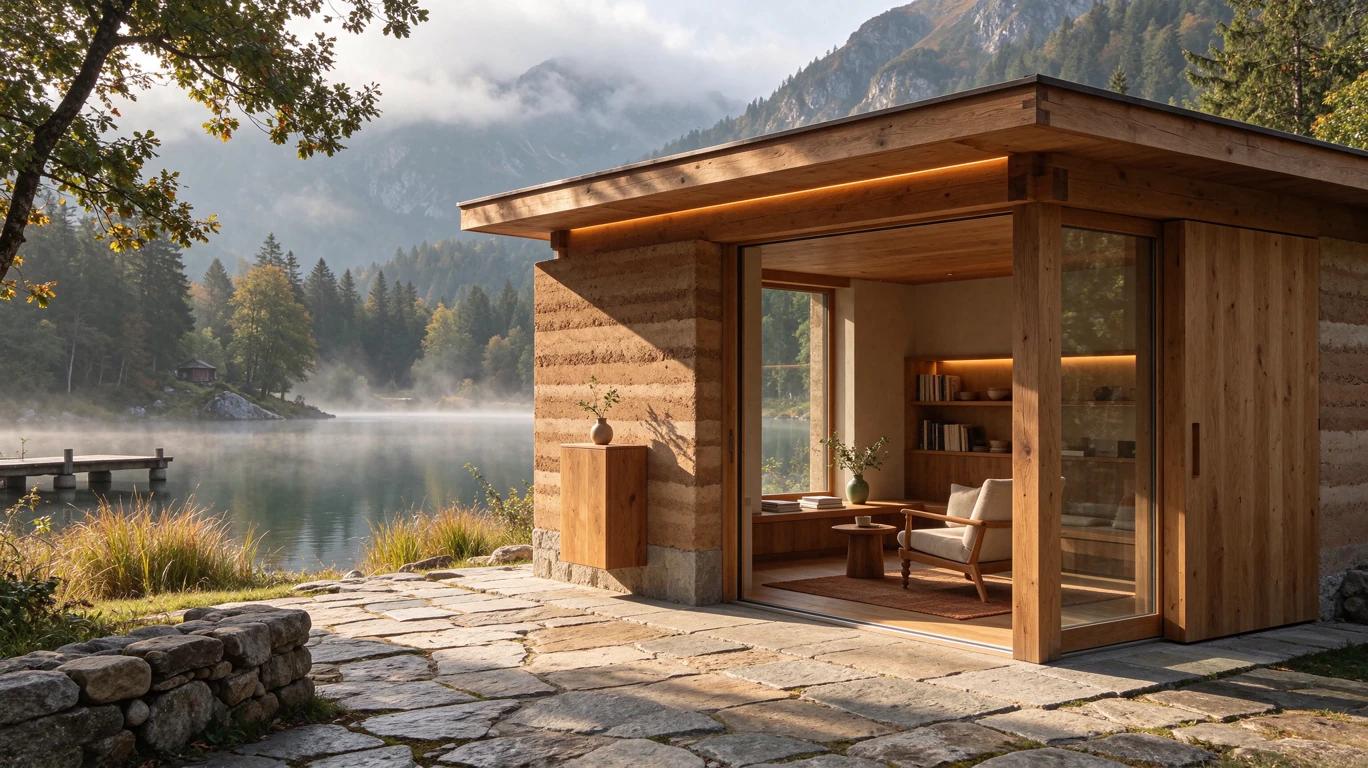
Lakeside reading pavilion generated with Seedream 5.5

An architectural photograph of a small oak and rammed-earth reading pavilion beside a quiet alpine lake, morning mist, warm recessed light, linen lounge chair, large clear windows, believable joinery and natural material texture, tranquil wide composition. No people, text, letters, signage, logos, or watermark.
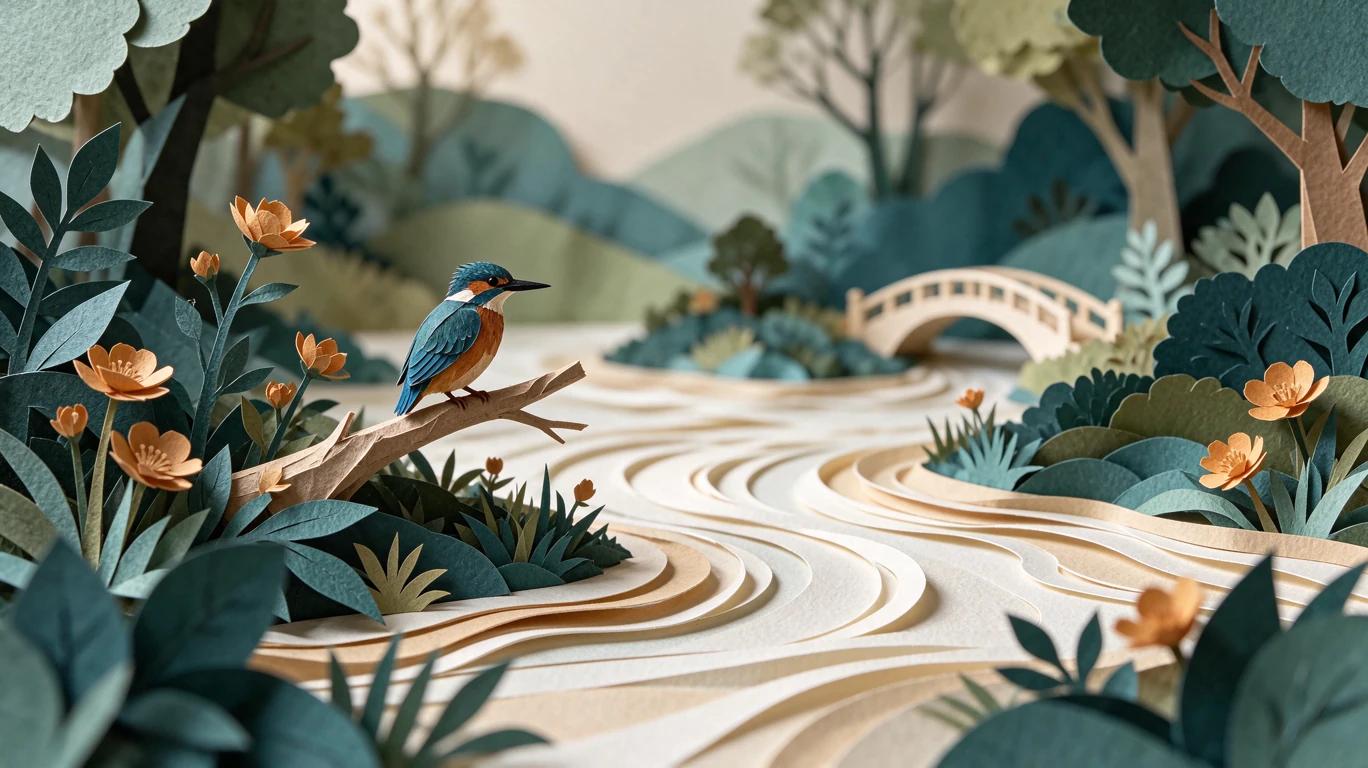
Layered paper kingfisher illustration generated with Seedream 5.5

An intricate handcrafted paper-cut illustration of a tiny kingfisher beside a miniature river garden, layered teal leaves, delicate amber flowers, curved cream paper ripples, soft real studio shadows between the paper layers, exquisite physical craft texture. Wide landscape composition. No text, letters, logos, labels, or watermark.

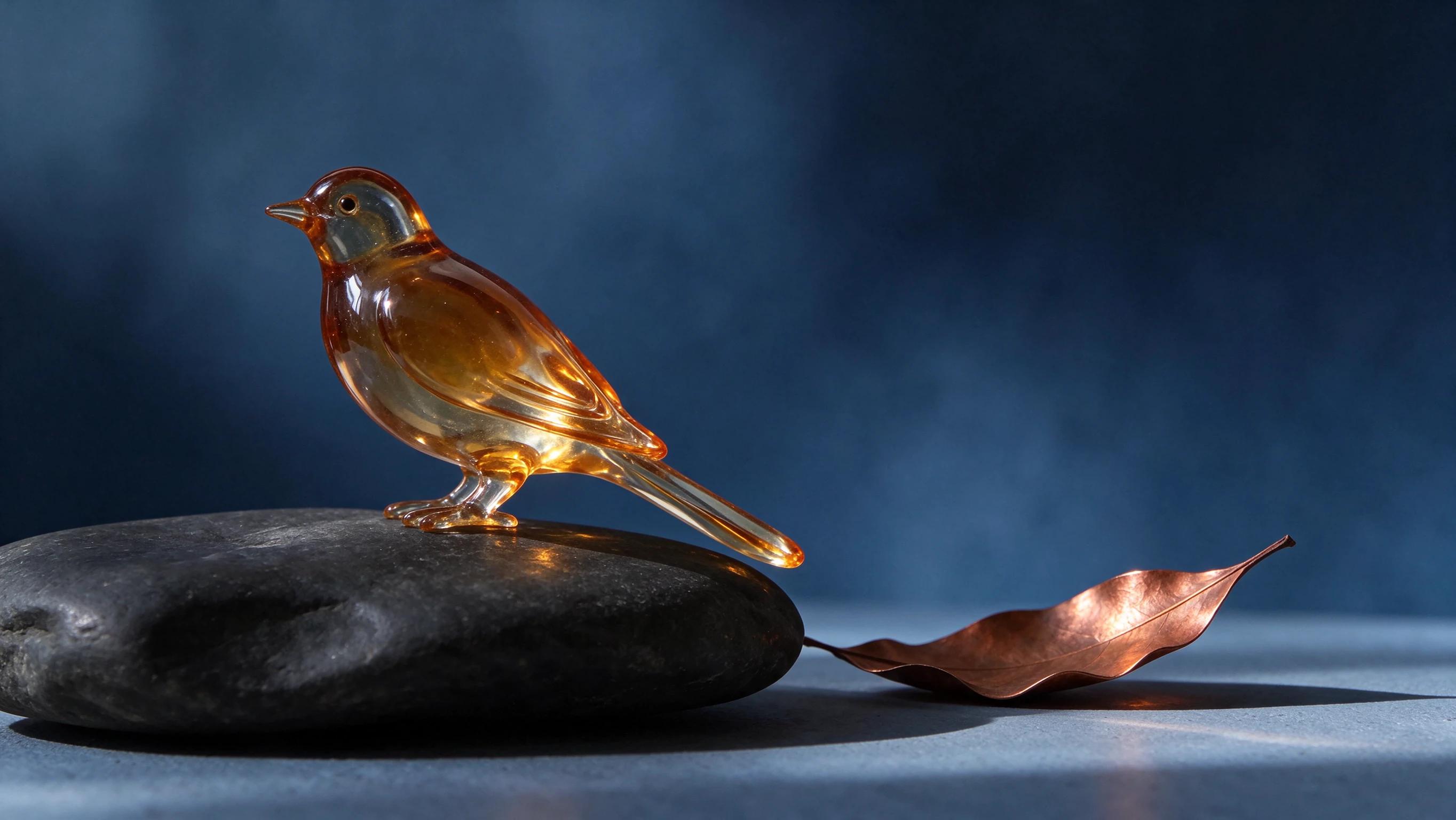
Amber glass bird edited with Seedream 5.5 using the demo image as its reference

Keep the glass bird's exact silhouette, pose and position on the charcoal stone. Change only the bird glass from jade-green to amber, and replace the ivory plaster background with a softly lit indigo studio backdrop. Preserve the copper leaf, framing, realistic reflections and material detail. No text, letters, logos, labels, or watermark.

Model overview

Seedream 5.5 for image generation and reference-guided editing

Explore product imagery, architectural concepts and detailed illustrations from a written brief. For editing, use source images to guide the subject, material and composition while describing the specific change you want.

Seedream 5.5 generation example
01 · Image generation

Describe light and materials

Start with the subject and its setting, then describe the lighting, surface texture and camera position. Glass, ceramic, cloth and natural materials make useful subjects for evaluating small visual details.

  • Supports Text to image and reference-asset generation workflows.
  • Fits product assets, ad previews, visual direction, and social content tests.
  • Adjust configured inputs, media, and switches before generation.
Reference asset control example
02 · Asset control

Choose the frame and image area

Choose 1K or 2K with auto, 1:1, 16:9, 9:16, 4:3, 3:4, 3:2, 2:3, 21:9 framing. Fixed ratios determine the image dimensions within the selected area tier. Auto leaves framing to the model.

Prompt-led generation
Unified model API and result management example
03 · API integration

Refine an image with references

Use Image Edit with 1–10 ordered references. Identify which image supplies the subject or styling, then state what should change and which details should stay consistent. Inspect each result before using it in the next edit.

  • Compare available models from Alibaba, Black Forest Labs, Google, MiniMax, Midjourney, OpenAI, ByteDance, Kuaishou, SJolt AI, Suno, xAI in one place.
  • Copy the request body directly to the server to reduce frontend/backend parameter drift.
  • Failure states, retries, result preview, and review checkpoints stay in the same workflow.

Model characteristics

From a visual brief to an image task

01

Start from text

Text to Image uses a nonblank prompt to generate a new composition. Specify framing, subject placement and visual constraints together.

02

Start from a source

Image Edit adds ordered references to the prompt. Keep instructions focused on a clear change, such as a material, background or prop.

03

Inspect the PNG result

Each task returns one PNG image. Review fine edges, important object details and the requested edit before using the output.

04

Connect the API

Submit the request, save data.task_id, and poll the shared task endpoint or provide a top-level webhook for completion.

FAQ

These are the first questions to answer when evaluating this model.

Which workflow should I choose?

Text to Image needs a prompt. Image Edit also requires 1–10 source or reference images.

Which image formats can I upload?

Use PNG, JPG, JPEG or WebP in the Playground. API references use HTTP(S) URLs that the service can access.

How do resolution and framing work together?

Select 1K or 2K and an aspect ratio. Fixed ratios use the resolution as an image-area tier, with width and height rounded to multiples of eight pixels. Auto lets the model determine the frame.

Can I continue editing a result?

Yes. Use the previous output URL as a reference in a new Image Edit request and describe the next change. Each request includes its own prompt and references.

How do I receive the image?

Poll the task endpoint and read data.output_urls when data.status is 1, or receive the completed result through your top-level webhook.