
Image workflows
Ideogram 4.5: Evaluate Image Editing and Build a SJolt Workflow
Ideogram 4.5 focuses on precise edits across multiple revisions. Test the changes you need and the details that must remain fixed, then compare an available SJolt image workflow.
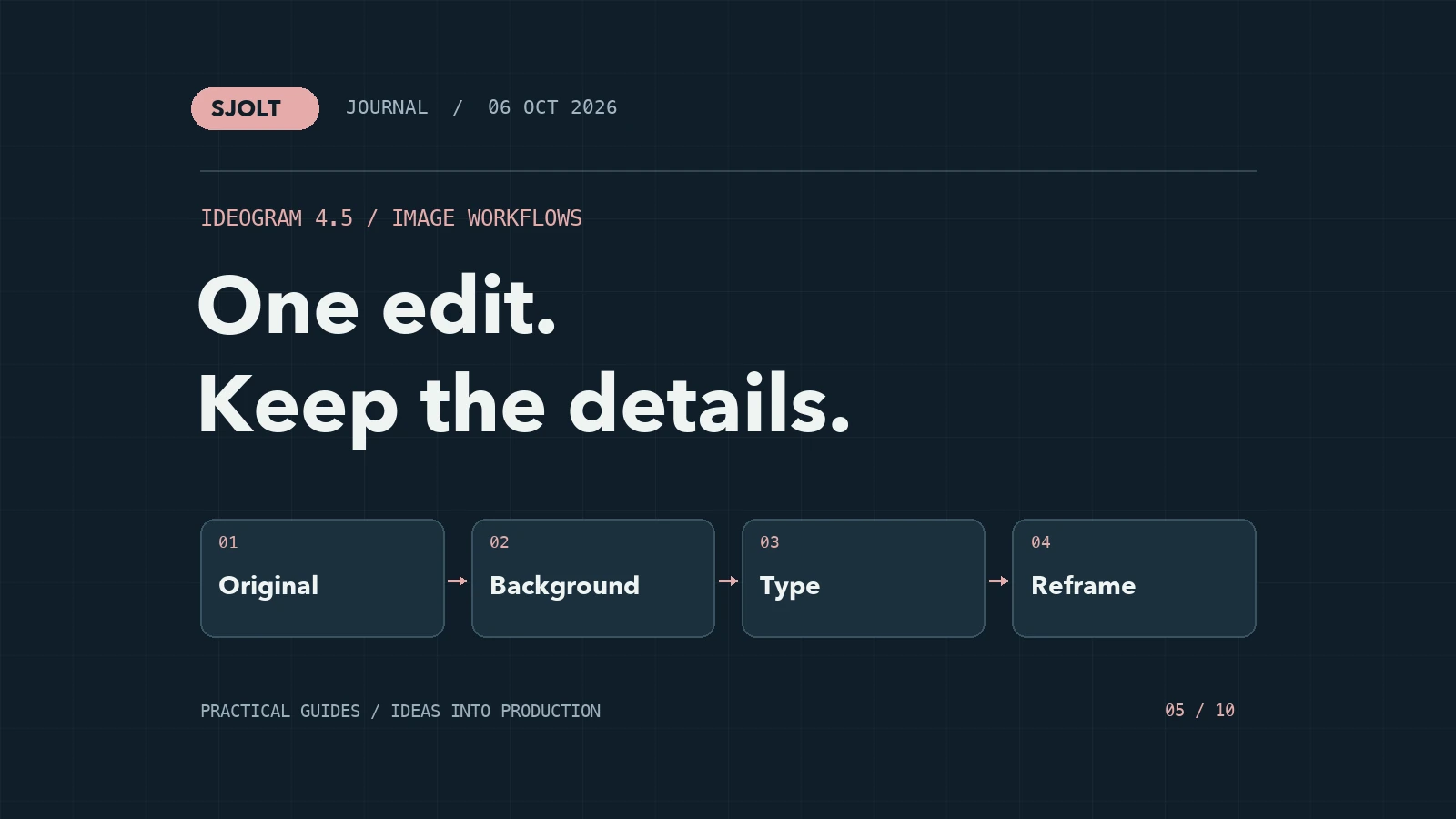
Ideogram 4.5 is listed on Ideogram’s official model page, which emphasizes preserving details through multiple image edits. Its examples cover tasks such as text changes, product photography, and reframing. These are useful test categories, but vendor examples alone do not establish which model will work best on your assets.
SJolt does not currently list Ideogram 4.5. If you want to evaluate it specifically, use Ideogram’s own access options. For a comparable image-editing task on SJolt, GPT Image 2 provides a supported reference-image workflow. This guide explains how to evaluate both without confusing their identities or request formats.
What the Ideogram 4.5 claim means for an editor
Ideogram describes reducing the small color, texture, and position changes that can accumulate across repeated edits. Its official comparison is a provider-selected demonstration, not our independent benchmark. The useful question for your project is whether the details you mark as fixed survive the sequence of revisions you actually need.
Start by naming the invariants: a bottle’s silhouette, a label’s exact wording, the position of a logo, or a person’s appearance. Then name one change per revision. Without this separation, an attractive redesign can look successful even though it altered a detail that makes the asset unusable.
Use a controlled three-edit test
| Step | Requested change | Details to keep fixed |
|---|---|---|
| Baseline | No edit; save the approved original | Dimensions, copy, product form, and composition |
| Edit 1 | Change the background to warm off-white | Product, shadows that define its shape, and label |
| Edit 2 | Change one headline | All remaining text and product details |
| Edit 3 | Reframe for a vertical placement | Headline wording, product proportions, and identity |
Keep every intermediate output and inspect it next to both the previous image and the original. A defect introduced at step one may be less obvious by step three because the viewer has become accustomed to it. Use the original as the reference for what must remain unchanged.
Run a second branch that starts each edit from the original with the accumulated instruction. This helps you distinguish a model’s local edit quality from degradation caused by repeatedly using generated images as new inputs. Neither workflow is automatically superior; the right choice depends on how much layout and appearance you need to preserve.
Check typography as content, not decoration
For a campaign graphic, readable-looking text is insufficient. Compare each required string character by character, including punctuation, units, and capitalization. Check the smallest intended display size as well as a full-resolution crop. A beautiful headline that is misspelled cannot be fixed by increasing image resolution.
- Keep a plain-text copy of every required string in the brief.
- Review word spacing, line breaks, and contrast at the actual delivery size.
- Check product labels separately from the main headline.
- Use your design tool for final typesetting when exact editable text is essential.
The same review should include layout. Confirm that the subject and headline remain within the intended crop and that a tall mobile placement has enough room for interface overlays. Treat each exported aspect ratio as a deliverable that needs its own check.
Try the corresponding task with GPT Image 2 on SJolt
The SJolt image-edit route takes a prompt and source images in image_urls. The current contract supports up to 16 reference images, aspect_ratio options, and 1K, 2K, or 4K resolution. For an initial evaluation, one approved source image makes it easier to understand which details the model changed.
curl --request POST 'https://sjolt.ai/sjolt-ai/v1/openai/gpt-image-2/image-edit' \
  --header "Authorization: Bearer $SJOLT_API_KEY" \
  --header 'Content-Type: application/json' \
  --data '{
    "input": {
      "prompt": "Change only the background to warm off-white. Preserve the product shape, camera angle, label wording, and label placement.",
      "image_urls": ["https://example.com/approved-product.png"],
      "aspect_ratio": "1:1",
      "resolution": "1K"
    }
  }'
Replace the example URL with a reachable image you control. Save data.task_id from the accepted request, query the task, and inspect data.output_urls after success. This request calls GPT Image 2 on SJolt; it is not an Ideogram endpoint or a claim of equivalent output quality.
Compare the cost of an accepted image
For each candidate, record the number of generations, the settings, the accepted output, and the time needed for manual correction. Use the same original asset and editing brief. Avoid comparing one model’s selected best result with another model’s first attempt.
A useful review sheet has separate scores for requested change, preservation, text accuracy, and delivery suitability. If preservation is essential, make it a pass/fail condition instead of letting a strong aesthetic score average away a serious defect. Record why an image failed so the next run targets that failure.
Choose the workflow that meets your final requirements with an acceptable amount of revision. For SJolt production work, keep the approved source, prompt revision, model route, and task ID together. That makes a later campaign variation easier to reproduce and review.
Sources & further reading
Take the next idea into production.
Explore the models, test a workflow in the playground, and use the same request in your application.