Grok Imagine Image 2.0 Text to image API

xai / Grok Imagine Image 2.0

Explore a new scene from text or refine an existing image with ordered references.

Generation time varies. Demo and examples are target-model outputs; README artwork is illustrative.

Pricing

Image rates

One output image per task. Reference images do not add a separate charge.

1K / Low
$0.016 / image
1K / Medium
$0.022 / image
2K / Low
$0.022 / image
2K / Medium
$0.03 / image
Input

Prompt, assets, and output parameters form one generation request.

Describe the subject, framing and lighting. For editing, identify what to change and what to preserve.
Aspect ratioChoose the framing for the output image.
ResolutionChoose the output resolution tier.
QualityChoose Low or Medium quality for this image.

Playground Examples

Try production-style prompt starters.

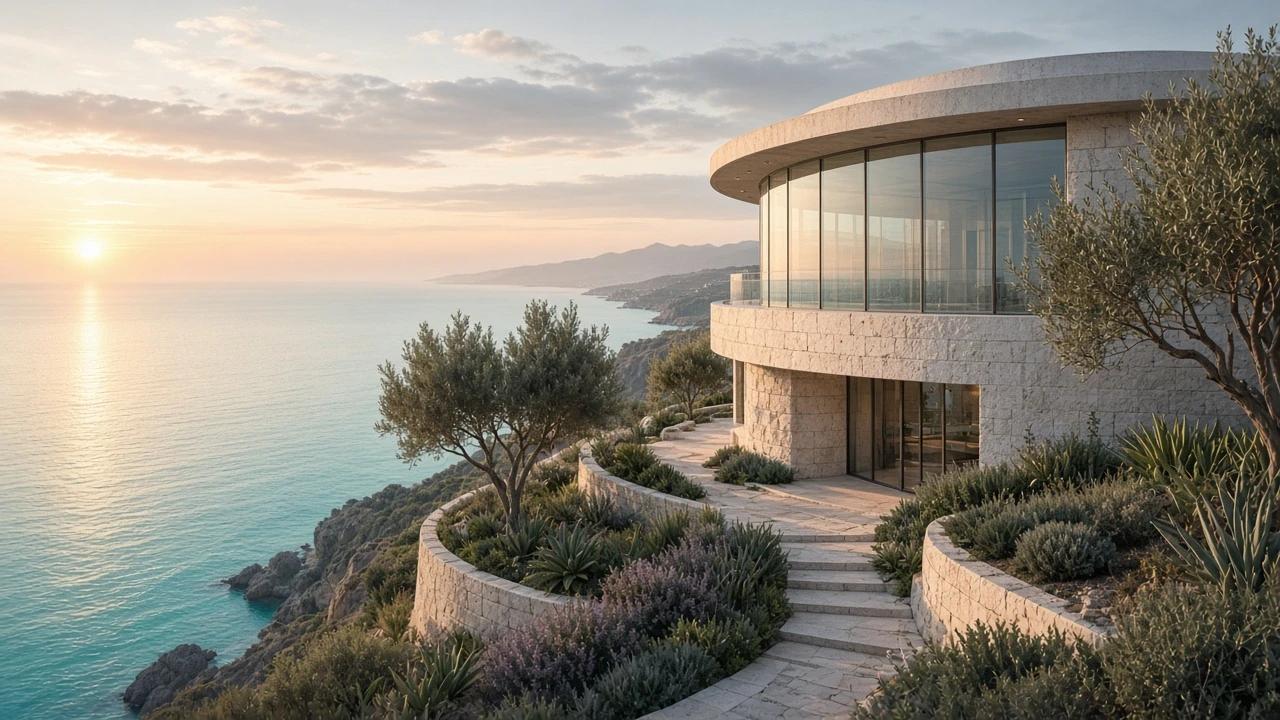
Coastal observatory generated with Grok Imagine Image 2.0

A quiet coastal observatory built from white stone and curved glass, perched above a turquoise sea at dawn, terraced Mediterranean planting, refined architectural photography, natural materials and believable fine details, wide composition. No text, logos, signs or watermark.
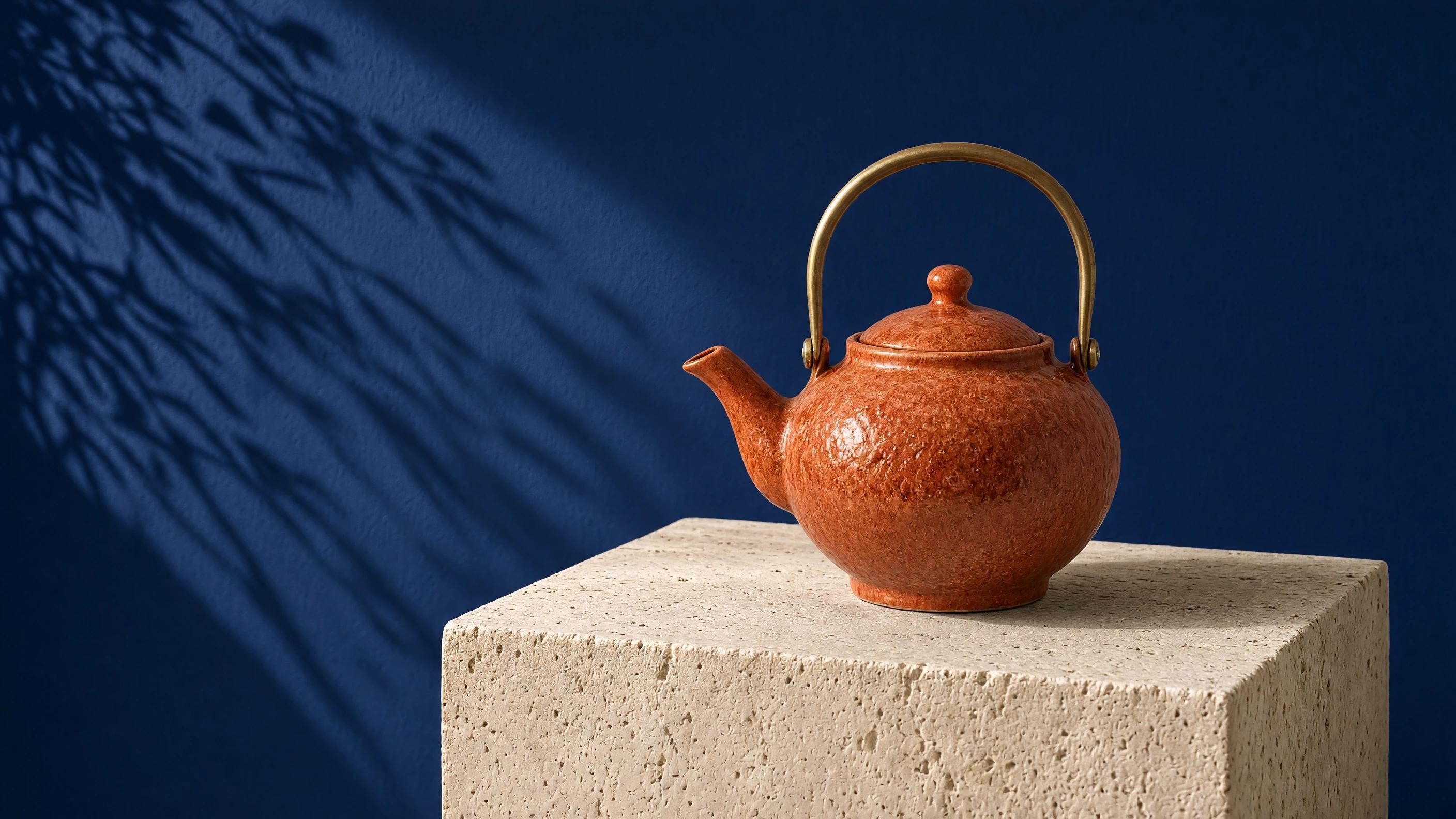
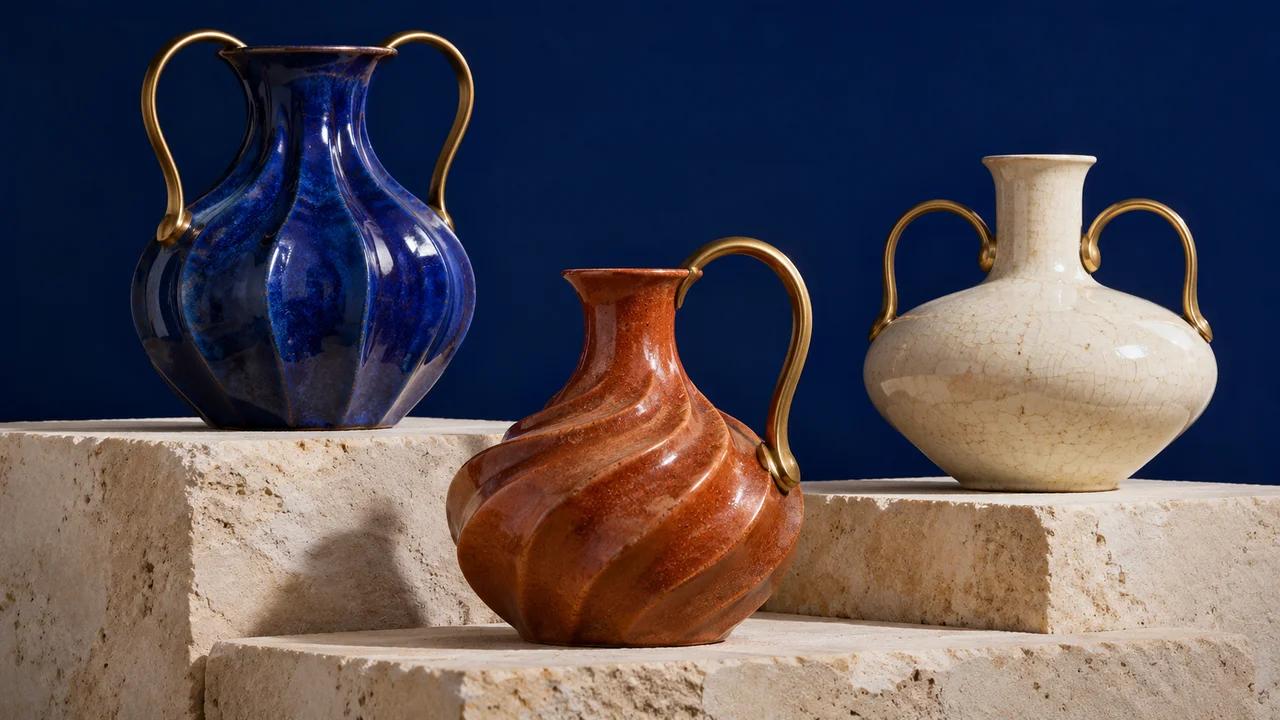
Terracotta teapot edited from the demo image

Keep the teapot shape, brass handle, plinth and framing unchanged. Change the ceramic glaze to warm terracotta orange and the background to deep midnight blue. Preserve realistic studio lighting and material texture. No text, logos, labels or watermark.

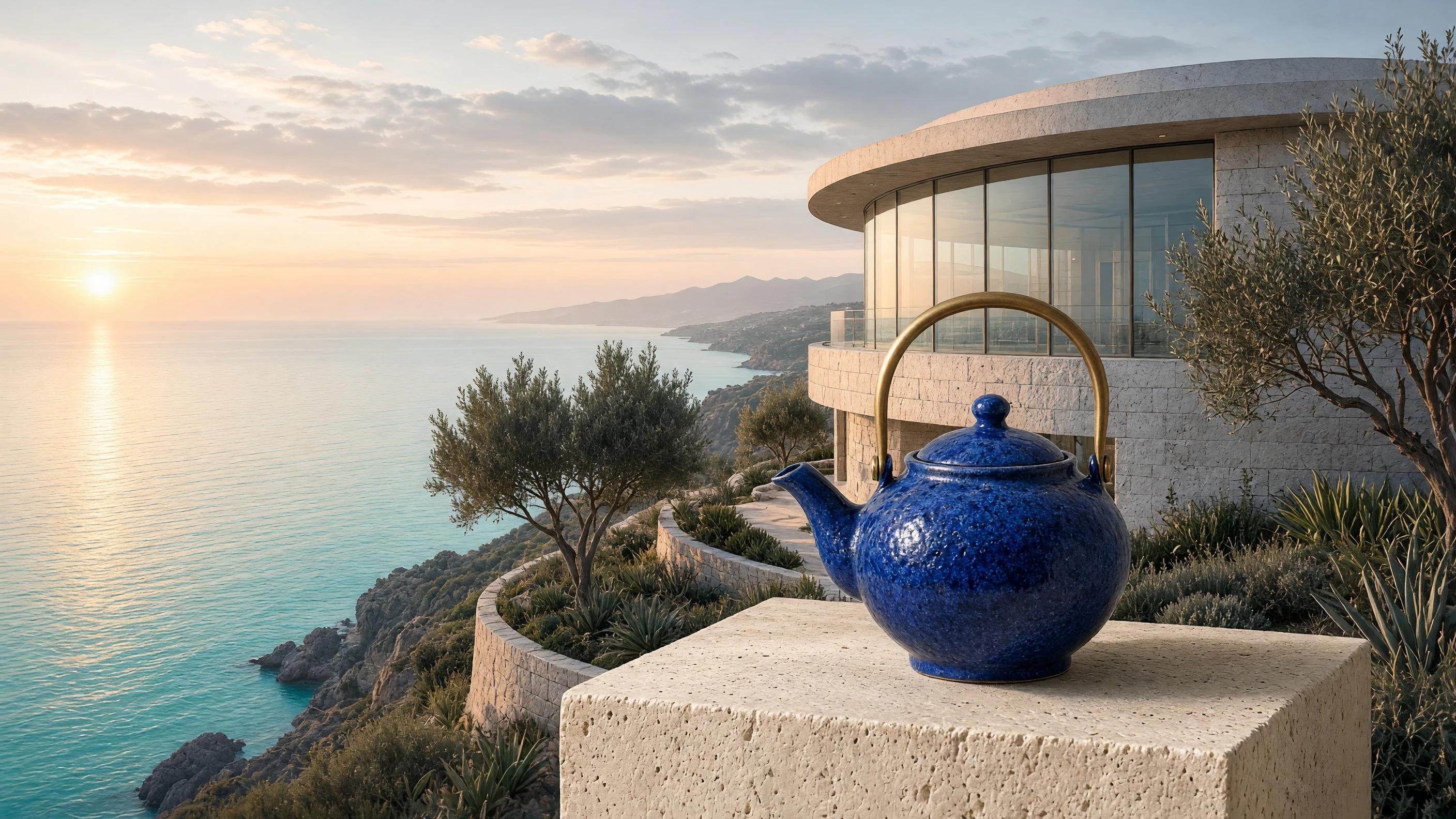
Teapot and coastal architecture combined from two references

Create a refined outdoor product photograph combining the ceramic teapot from the first reference with the coastal architecture and sea setting from the second reference. Place the teapot prominently on a pale stone terrace ledge. Preserve its distinctive shape and brass handle. Natural dawn light, realistic scale and perspective, wide composition. No text, logos, labels or watermark.

Model overview

Grok Imagine Image 2.0 for visual concepts and image editing

Start with a written visual brief or use source images to guide a focused edit. Keep the subject, framing and intended changes explicit so each result is easy to evaluate.

Grok Imagine Image 2.0 generation example
01 · Image generation

Build a scene from a visual brief

Describe the main subject, materials, environment and lighting. Add composition details and any visual constraints that matter for your use case.

  • Supports Text to image and reference-asset generation workflows.
  • Fits product assets, ad previews, visual direction, and social content tests.
  • Adjust configured inputs, media, and switches before generation.
Reference asset control example
02 · Asset control

Choose framing and quality

Select 1K or 2K resolution and Low or Medium quality. The default is 1K and Low. Available aspect ratios are 1:1, 16:9, 9:16, 4:3, 3:4, 3:2, 2:3.

Prompt-led generation
Unified model API and result management example
03 · API integration

Guide an edit with ordered references

Supply 1–5 images and explain which supplies the subject, setting or styling. State what should change and which details should remain consistent.

  • Compare available models from Alibaba, Black Forest Labs, Google, MiniMax, Midjourney, OpenAI, ByteDance, Kuaishou, SJolt AI, Suno, xAI in one place.
  • Copy the request body directly to the server to reduce frontend/backend parameter drift.
  • Failure states, retries, result preview, and review checkpoints stay in the same workflow.

Model characteristics

From prompt to delivered image

01

Text to Image

Use a nonblank prompt to create a new composition. Begin with the subject and add framing, materials and light.

02

Image Edit

Use one source for a focused edit or multiple references to guide a composition. Preserve reference order between iterations.

03

One image per task

Inspect the result for subject consistency, requested changes and actual image dimensions before using it.

04

Asynchronous API

Save the returned task ID, then poll the shared task endpoint or receive a top-level webhook callback.

FAQ

These are the first questions to answer when evaluating this model.

Which workflow should I choose?

Text to Image starts from a prompt. Image Edit additionally requires source or reference images.

Which references can I upload?

Upload up to 5 PNG, JPEG or WebP images. The API accepts HTTPS image URLs.

What are the default settings?

The defaults are 1K resolution, Low quality and a square 1:1 aspect ratio.

Can I continue editing a generated image?

Yes. Submit its URL as a reference in a new Image Edit request, together with the next instruction.